Adding a team mailbox
A team mailbox lets everyone who reads a shared inbox see what's arrived, even when nobody is signed in to Lutra Connect. It gets your organisation's emails, apart from billing.
Last updated 22 days ago
Only organisation owners and admins can set this.
Open Organisation emails
Click Settings, then Organisation emails under Organisation. You'll also find a link to it on the Members page.
Changes save as soon as you make them. A message at the bottom of the screen confirms each one, for example "Owners and admins won't be emailed".
A team mailbox lets everyone who reads a shared inbox see what's arrived, even when nobody is signed in to Lutra Connect. It gets your organisation's emails, apart from billing.
Add the address
In Organisation emails, under Who receives them, type the address into Team mailbox (optional).
Click Add.
The address shows Waiting for confirmation. Nothing is sent to it yet.
Confirm it from the mailbox
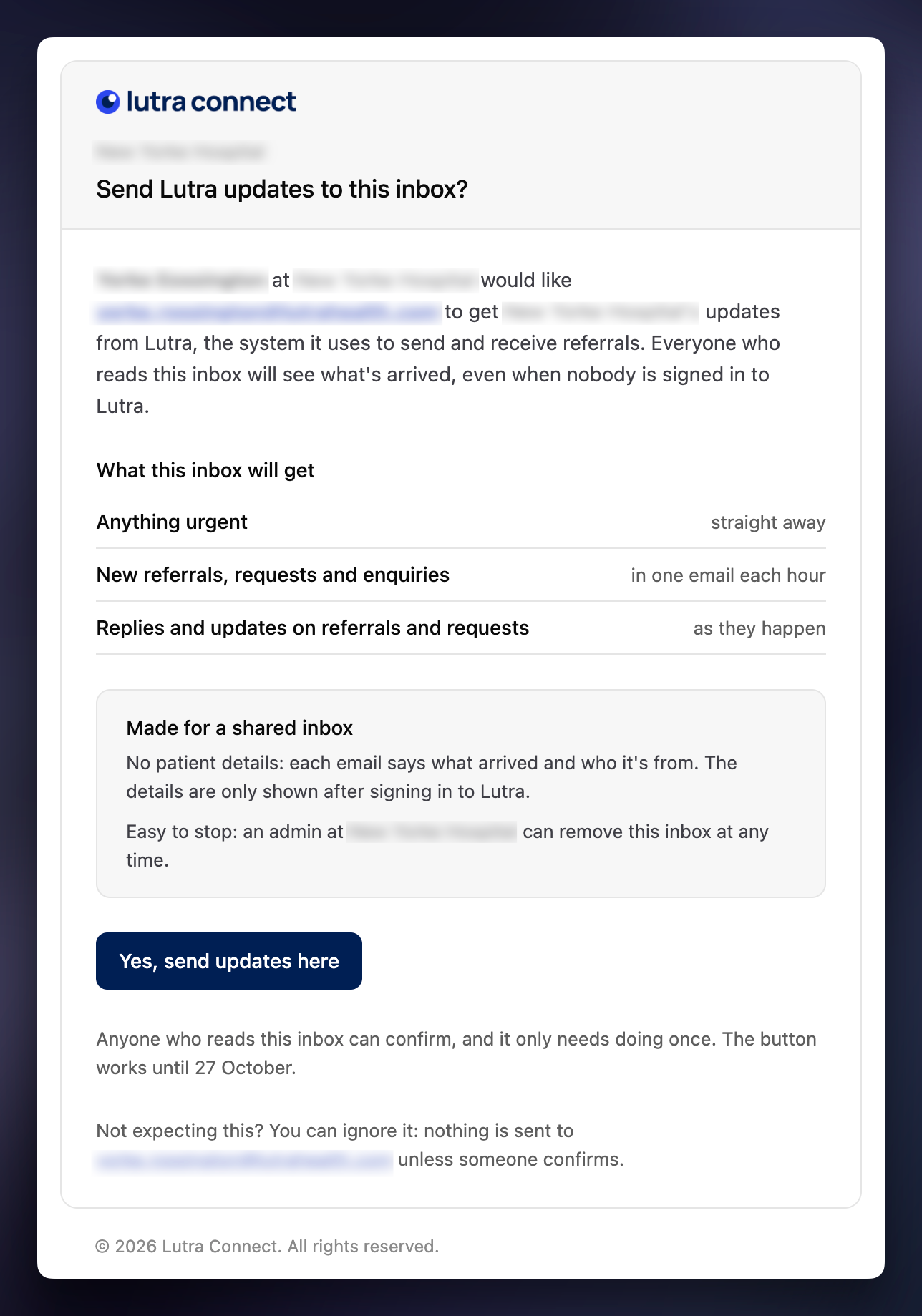
We email the mailbox a link. The email comes from you by name, for example "Sam Patel would like City Eye Unit's Lutra updates sent to this inbox". It lists exactly what the inbox will get and when.
Ask someone who reads the mailbox to open the email.
They click Yes, send updates here. They don't need a Lutra Connect account.
The page confirms with "You're all set". In Organisation emails, the address now shows Confirmed.
Anyone who reads the inbox can confirm, and it only needs doing once. The link works for 7 days.
If nobody confirms in time, click Resend link to send a new one. If someone didn't expect the email, they can ignore it: nothing is sent unless it's confirmed.
Removing a team mailbox
Click Remove next to the address, then confirm. The mailbox stops getting your organisation's emails straight away. People's own emails aren't affected.
To change the address, remove it and add the new one. The new address needs confirming too.
Was this helpful?
Still need help? Ask the team