Registering as a hospital, clinic or surgeon
This guide shows you how to create your Lutra Connect account and set up your hospital or clinic. It takes less than five minutes.
Last updated About 5 hours ago
This guide is for hospitals, clinics, and consultant ophthalmologists or surgeons in private practice.
Before you start, have these ready:
Your hospital or clinic's name and main address
Your professional registration number, such as your GMC number, if you are a registered clinician
Been invited by a colleague? Use the link in your invitation email instead. You'll join your organisation's existing account. See "Joining an existing hospital or clinic" at the end of this guide.
Step 1: Create your account
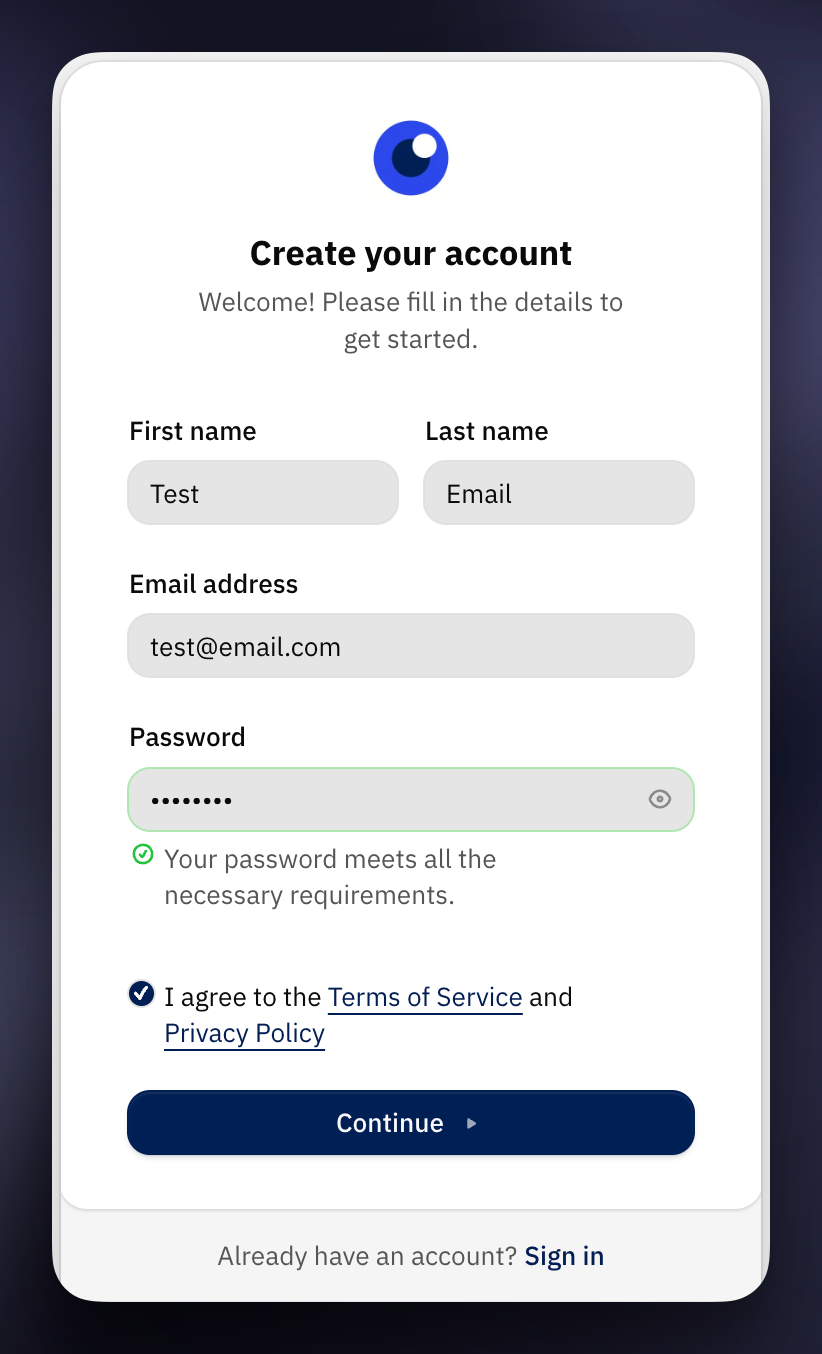
Go to our website and click Get started.
On the sign-in page, enter your email address.
Enter your first name, last name and a password. Your password must be at least 8 characters long.
Click Continue.
Step 2: Verify your email address
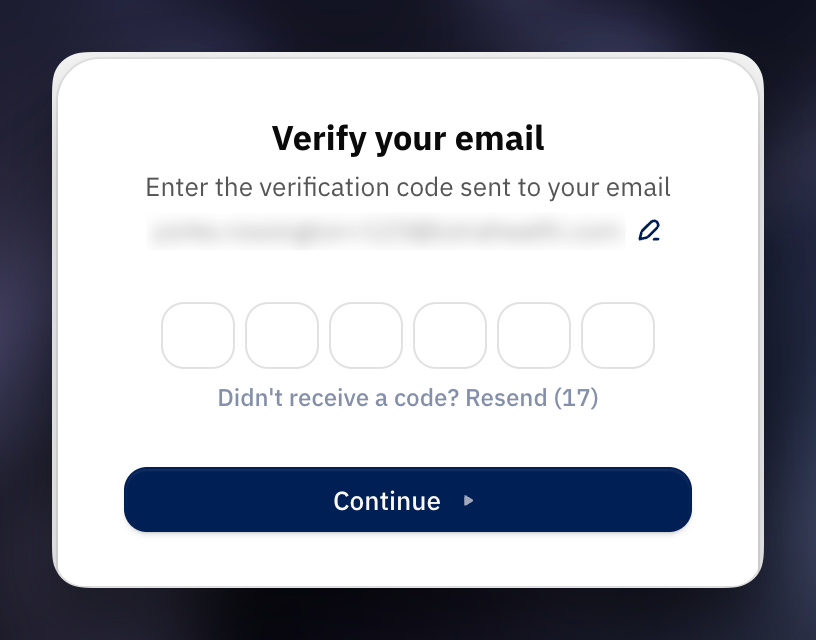
We'll email you a verification code. Enter the code on screen to continue.
If the email hasn't arrived after a few minutes, check your spam or junk folder. You can also click Resend to get a new one.
Step 3: Choose your organisation type
You'll be asked "What type of organisation are you setting up?"
Choose Hospital / Clinic. This option is for hospitals, clinics, and consultant ophthalmologists or surgeons working on their own. These are organisations that receive referrals and provide treatment.
Your choice decides which features and plans you can use, so please check you've picked the right one before you continue.
Step 4: Add your organisation name and address
Enter your hospital or clinic's name in Organisation Name. Use the name patients and referrers know you by. This will be shown across the application, but you can change it later.
Start typing your main address in Primary Practice Address, then choose it from the list.
If your address doesn't appear, click Manual and type it in yourself.
Click Continue.
If you work across more than one site, enter your main one here. You can add your other sites in Settings once your account is set up.
Other organisations on Lutra Connect may be able to see this address.
If you see "This organisation may already be on Lutra"
This means an organisation with a similar name is already registered. If it's yours, ask a colleague there to invite you. Creating a second account would split your patients and referrals across two accounts that can't see each other.
If it isn't yours, click Create anyway. You can also click Use a different name to change the name you entered.
Step 5: Accept the agreements
Read the Platform Terms and the Data Processing Agreement.
Tick the box to confirm that you agree to them and that you're allowed to accept them on behalf of your organisation.
Click Continue.
Step 6: Add your professional registration
Choose I have a registration.
Choose the body you're registered with, for example General Medical Council (GMC) or Nursing and Midwifery Council (NMC). If your body isn't listed, choose Other and type its name.
Enter your registration number.
Click Continue.
If you work in an admin or support role, choose Non-clinical user instead and go to Step 7.
You can add or change your registration later in your profile settings.
Step 7: Complete setup
Click Complete setup. We'll create your account and take you into Lutra Connect.
What happens next: verification and your plan
We check every new organisation before clinical features are switched on. While we do this, you'll see a page called "Organisation verification in progress". You'll also see a banner saying your organisation is unverified.
We usually finish verification on the same working day. Outside normal working hours it may take a little longer. We'll email your organisation's owners and admins as soon as it's done. You can also click Check again at any time.
Once you're verified, your next step is to set up your subscription in Settings → Plan & usage. When your subscription is in place, your team is ready to start using Lutra Connect.
Although most functionality will be available immediately, no referrals or post ops can be received without a plan.
Next steps
Set up your subscription in Settings → Plan & usage.
Add your other sites in Settings.
Invite your colleagues from Settings → Members.
If you need help, email iris@lutrahealth.com.
Joining an existing hospital or clinic
If your organisation already uses Lutra Connect, ask one of its admins to invite you.
Open the link in your invitation email.
Create your account and verify your email address, as in Steps 1 and 2.
You'll go straight into your organisation's account. You don't need to do Steps 3 to 7.
If you sign up without using the link, you'll see "You have pending invitations". Click Accept next to your organisation's name.
Was this helpful?
Still need help? Ask the team