Referring a patient
This guide shows you how to refer a patient to a hospital or clinic using Lutra Connect. Sending referrals is free.
Last updated About 2 hours ago
Your organisation needs to be verified before you can send referrals. If you see "Organisation verification in progress", see our registration guide.
Before you start, have these ready:
The patient's name, date of birth and postcode
Their NHS or CHI number, if you have it
Your clinical findings, such as vision and pressures
Any letters, images or documents you want to send with the referral
Step 1: Start a referral
You can start a referral from three places:
Home: click Refer a patient.
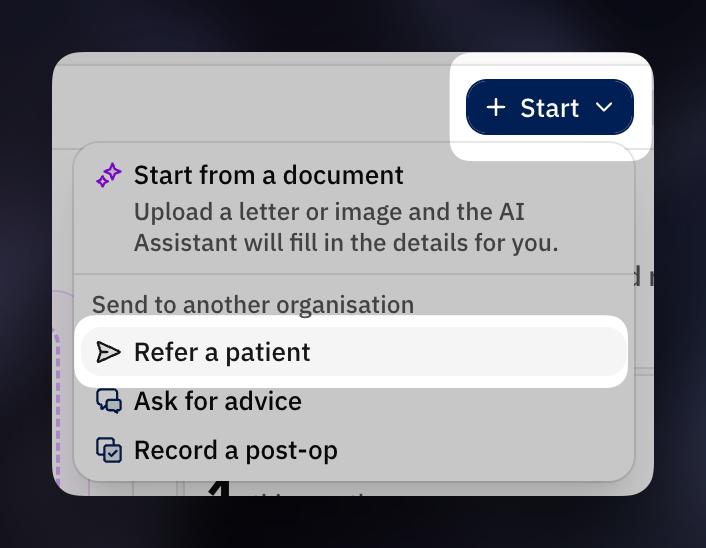
The Start button at the top of every page: click Start, then Refer a patient.
The Referrals page: click New referral (the + button).
If you're already on the patient's record, click + New referral in their Referrals section. You can then skip Step 2.
Step 2: Find or add the patient
Search for the patient by name, postcode or NHS number.
If they appear in the results, select them.
If they don't appear, try searching again with just their family name, their NHS or CHI number, a previous name or their postcode.
If you're sure they aren't already on Lutra Connect, click Register a new patient.
Always search before you register. Registering the same patient twice splits their history across two records.
Registering a new patient
Enter their given name, family name, date of birth and postcode. You can also add their NHS or CHI number, mobile, other phone number and email address. Then click Continue.
We use the patient's mobile and email to send them updates about their referral.
If we find a patient with similar details, we'll show you the existing record. Use it if it's the same person. If it isn't, click Not the same — register new.
Step 3: Fill in the referral form
The referral form opens. It has six sections. Click Next Section to move through them. Fields marked with a star are required.
Condition: choose the eye condition and which eye is affected.
Priority & Duration: choose the priority (Routine, Urgent, Suspected Cancer or Emergency) and how long the patient has had symptoms. If you choose Emergency, please also ensure the hospital are aware so they can act in time.
Visual Assessment: add vision and refraction results for each eye. This section is optional but is always useful.
Intraocular Pressure (IOP): add pressure readings for each eye in mmHg. This section is optional.
Referral Details: confirm the referral date and whether the patient has consented to the referral. Add any notes for the receiving team, and attach supporting documents.
Recipient: choose the hospital or clinic you're referring to (see Step 4).
Attaching documents
You can attach up to 10 files, each up to 10 MB. Images and PDFs are accepted. Photos taken on an iPhone are converted for you.
[Screenshot: Referral form]
Step 4: Choose the hospital or clinic
In the Recipient section, click Select an organisation....
Your most-used hospitals and clinics appear first, followed by those within 50 miles. Search by name to find any other organisation, or pick one from the map.
Select the organisation.
If you want to, and the hospital or clinic has enabled it, choose a specific clinician or site.
You can only refer to hospitals and clinics that use Lutra Connect. If the one you need isn't listed, they may not have joined yet.
Step 5: Send the referral
Check your answers, then click Submit on the last section. You'll see a message saying "Referral sent".
Once a referral is sent, you can't edit or withdraw it. Please check everything before you submit.
Saving a draft
Your answers are saved each time you click Next Section. To stop and come back later, click Save draft & close.
To find your draft, go to the Referrals page and open the Drafts tab. Select the draft and click Resume.
To delete a draft, open it and click Discard. Nothing is sent.
Starting from a document
If you already have a referral letter or clinic notes, the AI Assistant can fill in the form for you.
On Home, drop your document into Start from a document. You can also choose Start from a document in the Start menu.
The AI Assistant reads the document, finds the patient and suggests a referral. Click Start referral.
The form opens next to your document. Answers filled in by the AI Assistant are marked in purple. Check each one before you submit.
You can upload PDFs, scans or photos. PDFs and TIFFs can be up to 20 MB, and photos up to 10 MB.
After you send a referral
Tracking your referral
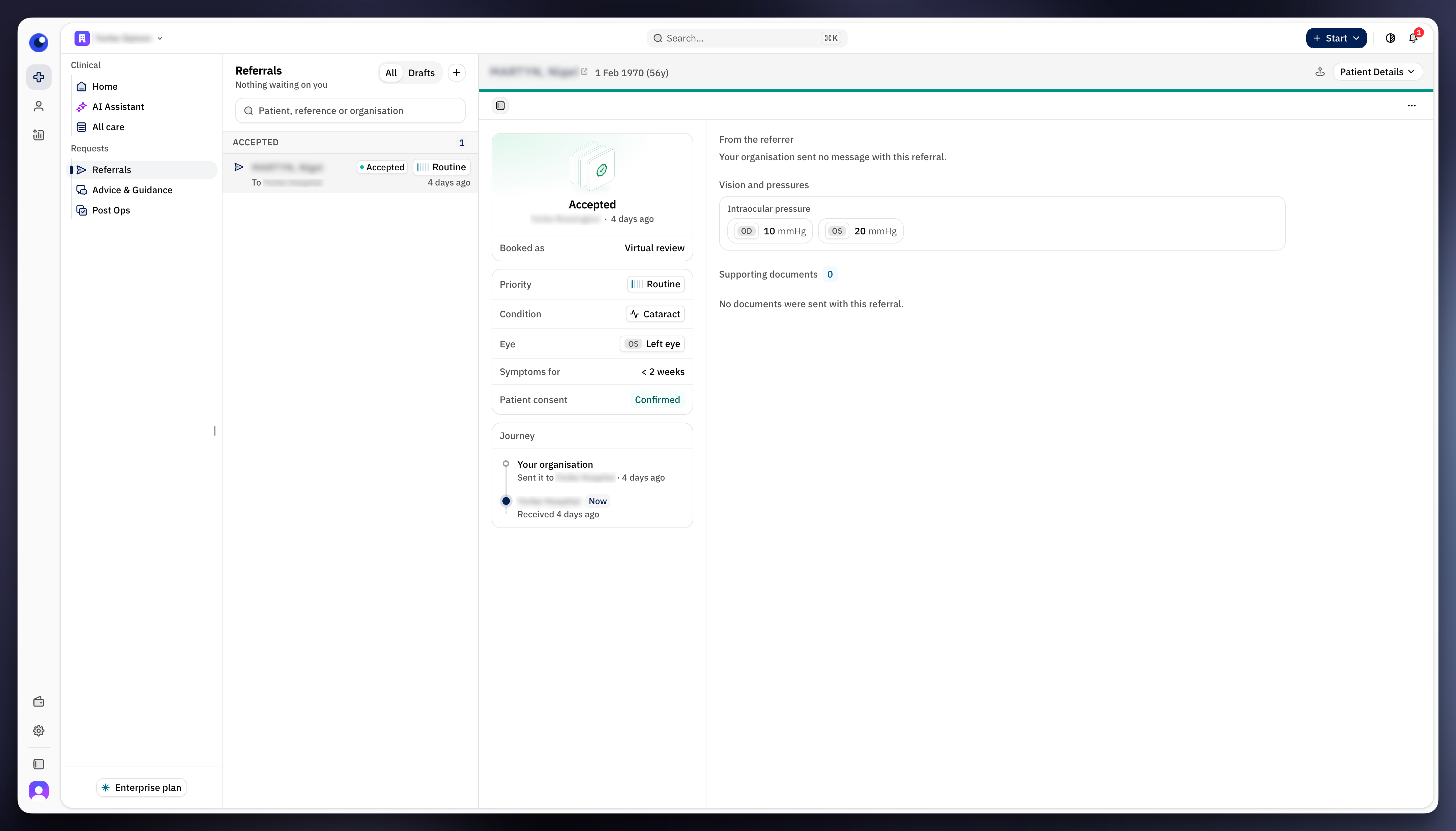
Your sent referrals are on the Referrals page, under All. They're grouped into:
Awaiting decision: the hospital hasn't looked at it yet
Accepted
Declined
Other outcome
Select a referral to see its details. The top of the page shows where it is now, for example "With" followed by the hospital's name, and when you sent it.
The hospital may also add a status as the patient's care moves on, such as "Consultation Booked" or "Surgery Booked".
When the hospital makes a decision
We'll send you a notification in Lutra Connect when the hospital accepts or declines your referral.
Accepted: you can see the type of booking they've made, such as a face-to-face or telephone appointment.
Declined: you can see the reason on the referral. Your organisation's owners and admins also get an email.
Transferred: the hospital has passed the referral to another organisation. The referral will show who it is with now.
Patient questionnaire
Some hospitals send the patient a short questionnaire by email or text after a referral is sent. You can see whether the patient has replied in the referral's details. Adding patient contact details will help deliver these questionnaires.
Recording the patient's post-op results
Once a referral is accepted, you can record the patient's post-operative vision for the hospital. Open the patient's record and start a Post-op Assessment.
Questions about a referral
Referrals don't have a message thread. If you need to discuss a patient with a hospital, use Ask for advice from the Start menu.
You can't edit or withdraw a referral once it's sent. If something needs changing, contact the hospital directly.
Downloading a copy
To save or print a referral, open it, click the ⋯ menu and choose Export PDF.
Was this helpful?
Still need help? Ask the team